Short version: just unzip the downloaded zip file and you will find the updated program inside, ready to use. Don’t remove KwikModel.exe or any other files that start in the unzipped folder. You don’t need to uninstall the old one, but remember to update your shortcuts/taskbar so you don’t accidentally open the old one.
Note: If you downloaded it from an email, you may skip to the unzipping part at 0:15. (don’t trust downloads from emails besides (support/orders)@kwikmodel.com and kwikmodel@gmail.com)
The actual installation after downloading will be the same either way.
Long version:
Download instructions:
Click on the downward arrow at the top right of the google drive page that opens.

You may see a warning saying the file is too large to be scanned, you should be able to just click “download anyways” to get past it.
Install instructions
Unzip the downloaded file (right click>”Extract All”). This will create a new KwikModel folder, which we recommend putting in a place besides the downloads folder to prevent accidental deletion.

Open the folder created from unzipping. There will be a file called inside the new folder called “KwikModel” or “Kwikmodel.exe” which you can click on to run Kwik Model. The folder also as various files that need to stay in the same folder as the program for it to work, so don’t move any file/folder including the KwikModel program out of the unzipped folder.

Updating your shortcuts for future use
Make sure you have any old versions of the software closed before continuing.
– Unpinning old Versions:
You can unpin the old versions from the taskbar by right clicking on their taskbar icon. This is helpful if you want to avoid getting the old and new one confused, but is not mandatory.
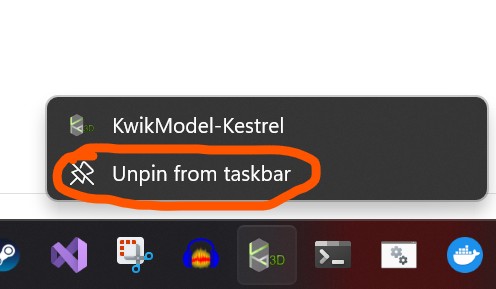
– Creating Shortcut/Pinning new version
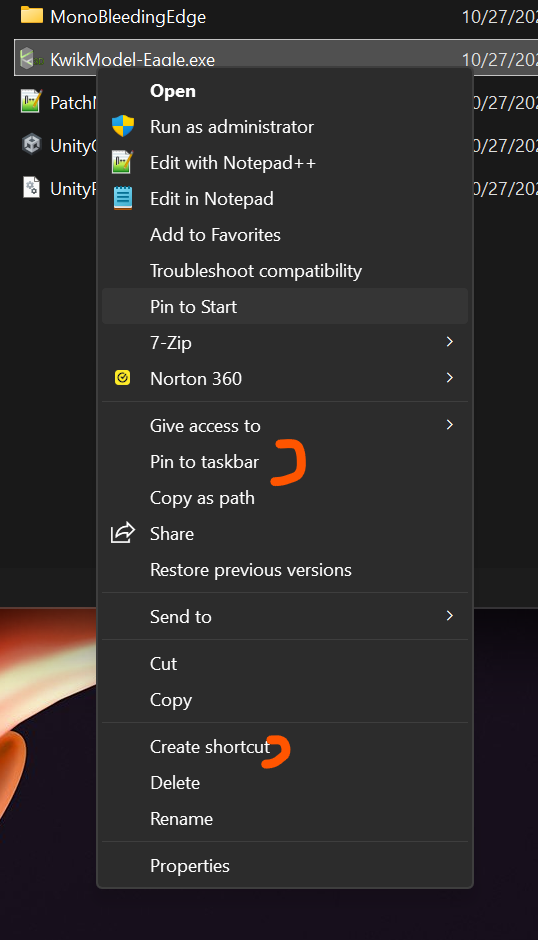
We’d recommend right clicking on the Kwikmodel.exe file and pinning it to taskbar (bottom bar of Windows)
-Right click on the KwikModel.exe file to pin it (under “show more options”>“Pin to taskbar”). Or if the program is already open, you can instead right click on the Kwik Model icon on the Windows taskbar to pin/unpin it. (lower image below)
-You can also choose “create shortcut” then drag the shortcut that it creates onto your desktop.

Note:
Each version is independent, so you don’t have to delete the old ones for it to work.
For help, contact support@kwikmodel.com